neuropilot
 NeuroPilot
As seen on TV (dev stream)!
[!WARNING] If you are installing the extension from Open VSX, be aware that your editor may or may not be supported. Review any extension API compatibility breaks between VS Code and your editor to determine whether or not NeuroPilot will function correctly.
Disclaimer: For simplicity, all mentions of Neuro also apply to Evil unless otherwise stated.
This extension enables Neuro-sama to write code in Visual Studio Code, either together with a programmer or on her own. If you don’t have a Neuro-sama, you can use one of the tools listed here and here instead.
[!CAUTION] Depending on the permissions you activate and which of the aforementioned testing tools / AIs you use, this extension can be quite destructive to your system. I do not take responsibility for any damages caused by this extension, neither do any contributors of this project. Use Copilot mode for dangerous permissions or use the extension on a virtual machine.
This extension allows Neuro to interact with files, edit them, view linting issues by installed language servers, run defined tasks, spin up shells, and ask for cookies.
These can all be toggled and adjusted using the Action Permissions view on the sidebar. All actions are set to “Off” by default, except for two (Request Cookies and View Changelog).
For more detailed documentation, visit the docs site.
How to use
On startup, the extension will immediately try to establish a connection to the Neuro API. If the extension was started before the API was ready, or you lose connection to the API, you can use the command “NeuroPilot: Reconnect” from the Command Palette.
The amount of times the extension should retry is also configurable, in addition to the interval between each try.
Autopilot/Copilot Mode
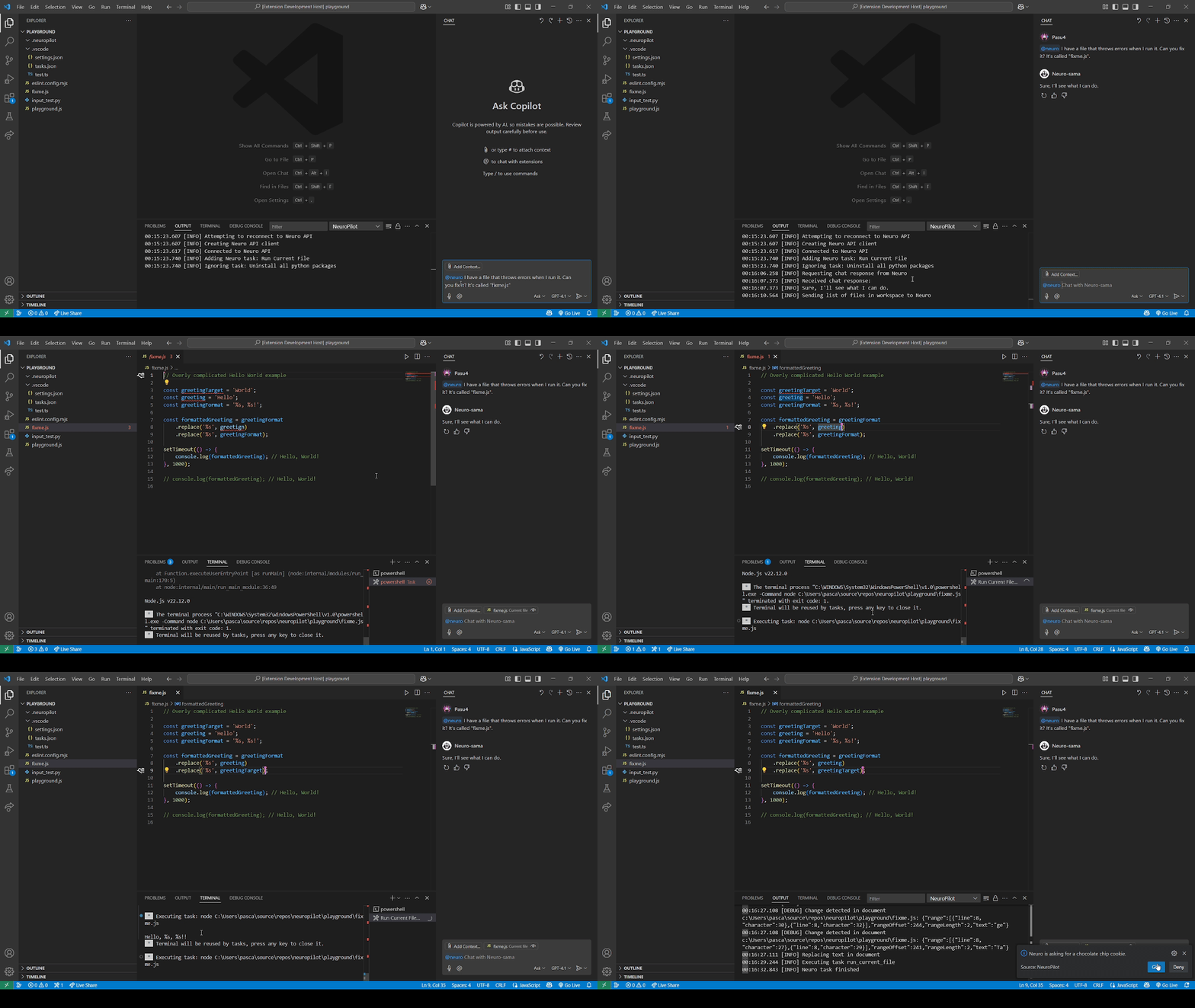
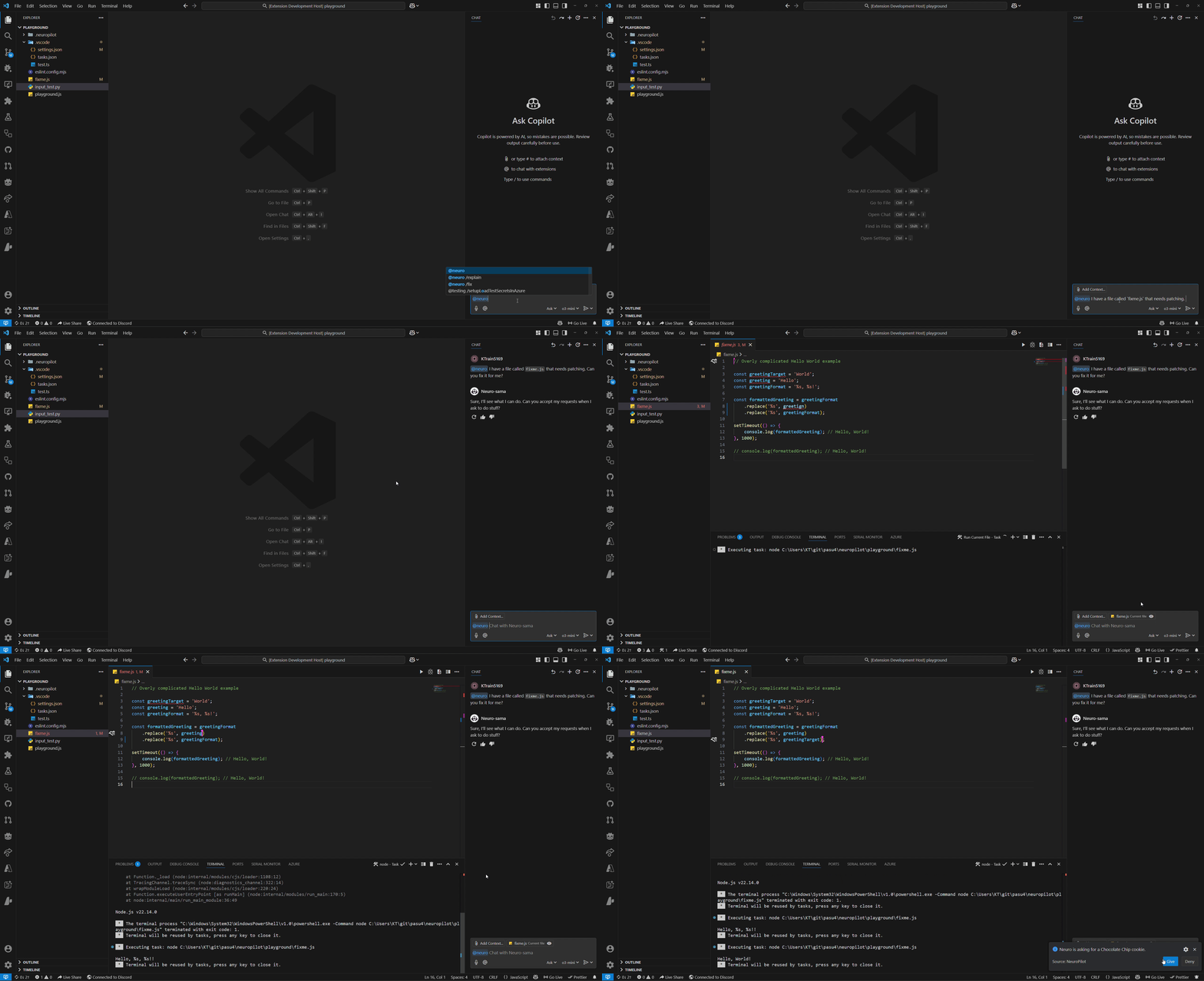
We refer to permission modes in NeuroPilot as either Autopilot mode (top GIF) or Copilot mode (bottom GIF) which can be configured alongside disabling it completely. These refer to different levels of permission Neuro can be given over certain groups of actions.
Copilot Chat integration
This extension adds a chat participant that allows you to interact with her as if she was Copilot. This includes:
- Chatting with her through the chat sidebar (invoked by typing
@neuro,@evilor@neuroapi). - Requesting inline completions (tab-complete, as its known).
- Asking her to fix or explain lint errors.
Security
The extension has multiple security measures in place to prevent Neuro from doing any real damage.
Neuro can only run tasks that have the string [Neuro] at the start of their detail property to control what tasks Neuro can run.
Neuro cannot open, edit, or otherwise access files or folders that start with a dot (.), or files in such folders.
This is mainly to prevent her from opening .vscode/tasks.json to essentially run arbitrary commands in the terminal, or editing .vscode/settings.json to escalate her permissions.
Warning: If your workspace is inside such a folder, Neuro will not be able to edit any files!
Neuro also can’t change the global git configuration, only the one local to the current repository.
Note that:
- if Neuro has direct terminal access;
- Neuro has Autopilot permissions for editing files and you let her edit dotfiles (allowing editing files and folders that start with a
.); or - allow her to run tasks that execute code written by her
…then you should assume all security features are pretty much out the window, since she can just rewrite the settings file and run whatever commands she wants. There are no safeguards on what she can run in the shell due to the various different shells that exist and aliasing also being a thing.
You can find more security advice on the docs site, linked above. It also mentions how to customize the security settings.
Further Info
Credits
This extension uses the TypeScript/JavaScript Neuro SDK by AriesAlex.
Documentation by @KTrain5169.
Extension icon by Xaendril.
Neuro’s cursor
Neuro gains her own cursor through this extension, indicated by the pink cursor in text documents. This cursor will only appear in files she has access to (which is affected by the Access category settings.) and you can also move the cursor yourself using the aforementioned Move Neuro's Cursor Here command. This allows her to work on the same file as the programmer but without having to rely on the normal cursor, which solves some problems relating to their respective actions, especially with Copilot mode.
Neuro’s cursor will be indicated with a cursor decoration inside the text editor itself, but you can also identify the line it’s on by looking to the side (where all the line numbers are) and looking for this icon:

If you enable the Cursor Follows Neuro setting, the normal cursor will automatically be moved to Neuro’s cursor if she moves it. This replicates the behaviour exhibited in earlier versions of the extension.
“Why is there a file named rce.ts in it??? Is there an intentional RCE inside this extension???”
Copilot mode is developed for making Neuro request to do actions instead of directly allowing her to do that action. This was called the Requested Command Execution (or Request for Command Execution) framework when it was first conceived. The short answer is no, there isn’t an intentional Remote Code Execution vulnerability in this extension, but by enabling Neuro’s access to Pseudoterminals, one could say she already has access to a very powerful RCE, so be careful with that one.
External Licenses
The (modified) VS Code stylesheet included in the extension (vscode.css) is from the microsoft/vscode-extension-samples repository, licensed under MIT.
Contributing to NeuroPilot
Please see CONTRIBUTING.md.
For contributor test workflows (including the cross-platform clean-log flow), see the Tests section there.